UPI - Onboarding Issues
(Device Bind)
Purpose of the Onboarding Failure SOP Document
The purpose of this Standard Operating Procedure (SOP) is to provide agents with a standardized, rapid procedure to diagnose and troubleshoot critical technical and security errors encountered during the UPI onboarding process. This ensures that:
Issues are immediately verified and escalated to the correct technical team.
All communication with the customer is secure and consistent, especially when dealing with sensitive issues like fraud flags or verification failures.
The agent maintains a high level of efficiency by following a clear, step-by-step diagnostic process.
Filling the Doc post, creating a Child Ticket is Mandatory
Important Links:
Important Note: If any user reaches out to us with login issues, please make sure that you check if they had requested data deletion previously or not.
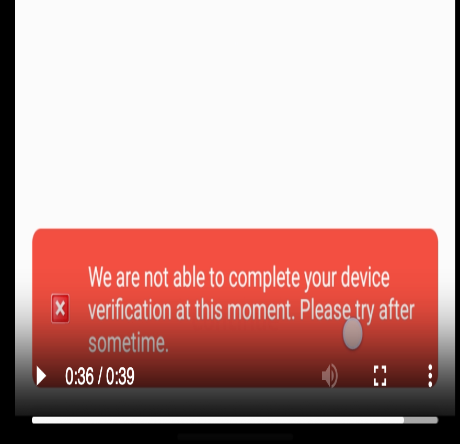
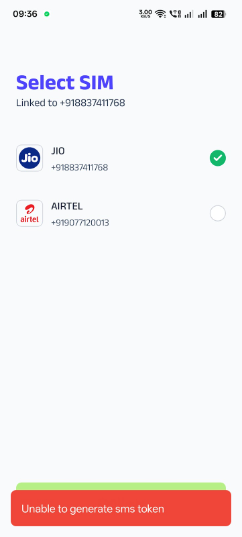
Device Verification Error — "Unable to complete device verification"
This error occurs during the onboarding or login phase. It is typically triggered by security protocols related to data privacy requests or risk-compliance flagging (blacklisting).
Step 1: Data Deletion Check
Action: Search the user's mobile number/email in the Data Deletion Sheet.
Check: Has the user previously submitted a formal request for Account Deletion?
Decision: * If YES: This is the root cause. A deleted identity cannot be re-onboarded for security and compliance reasons. Stop here.
If NO: Proceed to Step 2.
Step 2: Blacklist & Risk Check
Action: This error can occur in the below 2 scenarios.
Scenario A (Device Blacklisted): If the Device ID is flagged for fraudulent activity or security violations.
Instruction: Ask the user to attempt signing up from a different, secure mobile device.
Next Step: If the user is getting the same error even after changing the device. Please raise a child ticket and inform the user to wait for 2 working days.
Scenario B (User Blacklisted): If the User Identity is permanently flagged by the internal checks.
Instruction: Inform the user that they are ineligible to onboard.
Email Response Templates
Scenario 1: Previous Data Deletion Request
Dear User,
Thank you for reaching out to us regarding the device verification error.
Upon reviewing our records, we found that a request for permanent data deletion was previously processed for an account associated with your details.
As per our security and data privacy policies, once an account and its associated data are deleted upon a user's request, that specific identity cannot be re-registered on our platform. Therefore, we are unable to proceed with your onboarding at this time.
Regards,
super.money Support Team
Scenario 2: Blacklisted Device (Initial Suggestion)
Dear User,
We noticed you are having trouble verifying your device on super.money.
This error often occurs when the security system identifies a compatibility or security conflict with the specific mobile hardware being used. To resolve this, we recommend attempting to sign up using a different mobile device.
Please ensure the new device has a stable internet connection and the latest version of the super.money app installed.
Regards,
super.money Support Team
Scenario 3: Permanent User/Device Blacklist (Final Response)
Dear User,
Thank you for your patience while we investigated your onboarding issue.
After a thorough review, we regret to inform you that we are unable to offer our services to you at this time. This decision is based on our internal risk assessment and security protocols regarding your account or device.
Please note that this is a final status, and we will not be able to override this verification failure manually. We appreciate your understanding.
Regards,
super.money Support Team
Important Note: If any user reaches out to us with login issues, please make sure that you check if they had requested data deletion previously or not.
Onboarding Failure - REGISTRATION_DECLINED
Step 1: Acknowledge and Gather Details
Acknowledge the customer's frustration with the inability to onboard onto the super.money app.
ACTION: Get the user's super.money registered mobile number if it is an Email ticket.
For Portal Tickets: SM ID will be available in the customer’s profile. No probing is required.
Step 2: Validate Error in Metabase
ACTION: Click on the provided link to access the METABASE.
SEARCH: Enter the user's super.money UPI ID and filter the data.
VALIDATE: Check the "Response Code" field in the Response section.
CRITERIA: If the agent sees the specific error code REGISTRATION_DECLINED, they must proceed with the escalation.
Step 3: Escalate Internally
ACTION: Create a child ticket linked to the customer's primary ticket.
ASSIGNMENT: Change the internal assignment to Shashi Kiran.
STATUS: Change the ticket status to "Waiting on Internal."
Agent Note: Add a private note confirming the exact error: REGISTRATION_DECLINED was found in the transaction log.
Step 4: Communicate with the Customer
ACTION: Inform the customer that the technical issue has been escalated to the specialist team.
Communication: Advise the customer that the team is investigating and will provide an update soon. Do not promise a specific timeline.
Customer Communication Template
Dear [Customer Name],
Thank you for reaching out to us. We apologize for the trouble you are having with your registration.
We have identified a technical error and have raised a ticket with our internal team to investigate the root cause of this registration issue.
They are actively working on it, and we will be in touch with an update in 2 working days.
We appreciate your patience.
Best regards,
super.money Support Team
Freshdesk Taggings
L1: Login
L2: Mobile Verification
L3: Registration Declined
Onboarding Failure - SMS_VERIFICATION_EXPIRED
Step 1: Acknowledge and State the Cause
Acknowledge the user's error message.
ACTION: Get the user's super.money registered mobile number if it is an Email ticket.
For Portal Tickets: SM ID will be available in the customer’s profile. No probing is required.
Inform the user that this error means the system's security timer ran out before the bank could complete the SMS verification process. This often happens due to network latency or a delay in switching back to the app.
Step 2: Provide the Resolution and Best Practices
Resolution: Instruct the customer to wait 5–10 minutes before trying again.
Best Practices: Advise the customer on how to ensure the next attempt is successful:
Ensure they have a strong and stable mobile network connection.
Do not switch apps or minimize the super.money app during the verification process.
Complete the process quickly once the SMS is received.
Customer Communication Template
Dear [Customer Name],
Thank you for reaching out. We see that you are facing issue with your mobile registration process.
This happens when you move super.money app in the background during registration process or you might be in low network connectivity due to which the process completion time was longer.
To resolve this, please try again in 10-15 minutes and ensure the following:
Stable Connection: You are on a strong mobile network.
No Interruption: Please do not switch apps or minimize the super.money app until the verification is 100% complete.
Completing the verification quickly will prevent the timer from expiring.
Best regards,
super.money Support Team
Freshdesk Taggings
L1: Login
L2: Mobile Verification
L3: SMS Session Timed Out
Onboarding Failure - OTP_VERIFICATION_FAILURE
Procedure
Step 1: Acknowledge and Initial Check (User Error)
Acknowledge the user's error message.
Initial Action: Advise the customer to wait 5 minutes and retry entering the OTP carefully, confirming they are using the latest OTP received. This addresses common user error.
Step 2: Escalate Persistent Failure
ACTION (If Retrial Fails): In such cases ask the user if this is happening consistently with the user and if no, ask user to try again and If it is happening consistently, escalate to L2.
Probing: Get the user's super.money registered mobile number if it is an Email ticket.
For Portal Tickets: SM ID will be available in the customer’s profile. No probing is required.
Step 3: Escalate Internally (To Shashi Kiran)
Advise the customer to wait 5 minutes and retry entering the OTP carefully, confirming they are using the latest OTP received. This addresses common user error.
If the Issue persists, create a child ticket linked to the customer's primary conversation.
ASSIGNMENT: Immediately change the internal assignment to Shashi Kiran.
STATUS: Change the ticket status to "Waiting on Internal."
Agent Note: Add a private note confirming the persistent OTP_VERIFICATION_FAILURE and the last failed timestamp.
Step 4: Communicate with the Customer
ACTION: Inform the customer that the issue has been escalated to the specialist team.
Communication: Advise the customer that the team is investigating and will provide an update within 2 working days.
Customer Communication Template
Dear [Customer Name],
Thank you for reaching out. We are sorry to see that you are facing repeated failures with your OTP verification.
We have identified a technical issue and have urgently escalated this case to our internal team for an immediate investigation into the root cause.
We will be in touch with a resolution or share an update within 2 working days.
We appreciate your patience.
Best regards,
super.money Support Team
Freshdesk Taggings
L1: Login
L2: Mobile Verification
L3: OTP Verification Failed
Onboarding Failure - SMS_VERIFICATION_MISMATCH(FRAUD)
Step 1: Acknowledge and Provide Initial Troubleshooting
Acknowledge the user's error message.
Step 2: Escalate Persistent Failure
Probe: Get the user's super.money registered mobile number if it is an Email ticket.
For Portal Tickets: SM ID will be available in the customer’s profile. No probing is required.
Initial Action: Advise the customer to verify they are using the exact mobile number and device used for their initial super.money registration.
Escalation Trigger: If the customer confirms they are using the correct mobile number and device, but the error still occurs, this indicates a technical failure.
Step 3: Escalate Internally
ACTION: Create a child ticket linked to the customer's primary ticket.
ASSIGNMENT: Immediately change the internal assignment to Shashi Kiran.
STATUS: Change the ticket status to "Waiting on Internal."
Agent Note: Add a private note confirming the persistent SMS_VERIFICATION_MISMATCH error and that the user has verified the mobile number and device used.
Step 4: Communicate with the Customer
ACTION: Inform the customer that the issue has been escalated to the specialist team.
Customer Communication Template
Dear [Customer Name],
Thank you for reaching out. We see that you are facing an issue during mobile number registration.
This usually happens when a different mobile number or device is used for re-registration.
To resolve this, please ensure the following before trying again:
Consistent Number: You are using the same registered mobile number that was used when you first signed up.
Original Device (if possible): Try completing the registration on the same device you initially used.
Try uninstalling and reinstalling the super.money App from App Store/Play Store and try again.
If you are certain you are using the correct mobile number and device and the error persists, please reply to this email, and we will escalate it to our technical specialist immediately.
Best regards,
super.money Support Team
Freshdesk Taggings
L1: Login
L2: Mobile Verification
L3: SMS Verification Mismatch
Onboarding Failure - INVALID_DATA (Fraud/Blacklist Flag)
Step 1: Acknowledge and Verify Error
Acknowledge the user's report of a sign-up error.
Step 2: Skip Troubleshooting and Escalate Immediately
Probe: Get the user's super.money registered mobile number if it is an Email ticket.
For Portal Tickets: SM ID will be available in the customer’s profile. No probing is required.
ACTION: Access the internal logs to confirm the exact error code is INVALID_DATA.
Internal Note: This error often correlates with blacklisted devices or users flagged by partners like Juspay and Yes Bank. Do not communicate this reason to the customer.
Step 3: Escalate Internally (To Shashi Kiran)
ACTION: Create a child ticket linked to the customer's primary ticket.
ASSIGNMENT: Immediately change the internal assignment to Shashi Kiran.
STATUS: Change the ticket status to "Waiting on Internal."
Agent Note: Add a private note confirming the INVALID_DATA error and stating the suspicion of a Blacklist/Fraud Flag from the partner systems.
Step 4: Communicate with the Customer (Security Focus)
ACTION: Inform the customer that the issue has been escalated for the review.
Customer Communication Template
Dear [Customer Name],
Thank you for reaching out. We see that you are facing an error during registration.
We have identified a technical issue that requires a technical review by our team. We have escalated this case to our internal team for investigation into the root cause.
We will be in touch with a resolution or an update within 2 working days..
We appreciate your patience.
Best regards,
super.money Support Team
Freshdesk Taggings
L1: Login
L2: Mobile Verification
L3: Registration Declined
Was this article helpful?
That’s Great!
Thank you for your feedback
Sorry! We couldn't be helpful
Thank you for your feedback
Feedback sent
We appreciate your effort and will try to fix the article